
Smart LEDZ Fit uses the following ID and password:
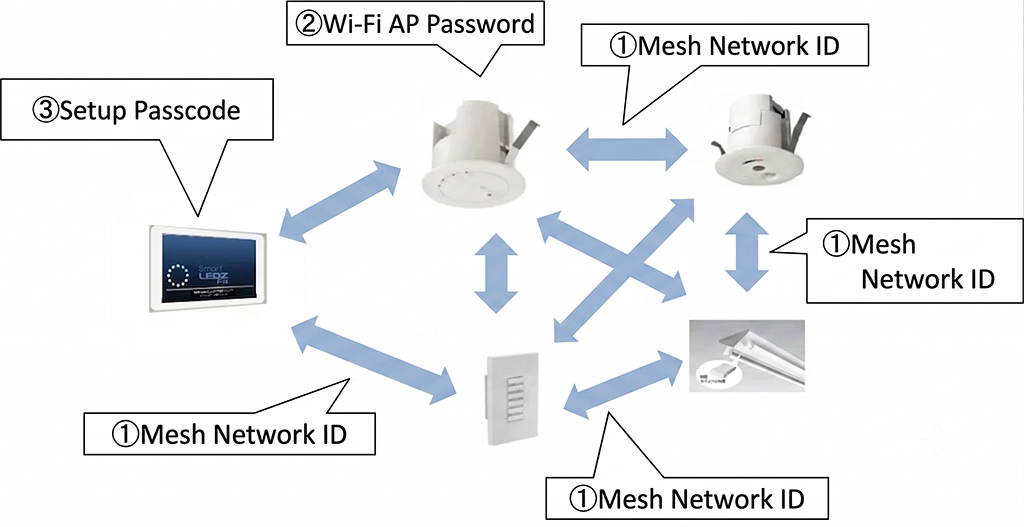
① Mesh network ID/password (Factory default setting: endo/smartledz)
The ID and password for joining the mesh network can be changed from the app’s settings screen. The factory default settings are configured when the wireless module is shipped. The mesh network ID is also called the mesh ID.
When registering a lighting fixture to a group, the factory default wireless module (lighting fixture) will be listed. Once registered to the group, the mesh network ID and password will be changed to those set in the app.
② Wi-Fi AP password (Factory default setting: 12345678)
This is the password you enter when connecting the app and gateway via Wi-Fi.
A maximum of three tablets or smartphones can connect to one gateway simultaneously.
If you are installing the gateway in an environment with many people, please change the password.
③ Setup Passcode
Initial: No setting. Version Upgrade: The settings configured before the version upgrade will be carried over.
In the app’s settings screen, you can set a passcode to prevent others from changing the settings. The following settings items are affected:
[Create and edit groups, scenes, and schedules; mesh network settings; configuration passcode; remote control settings; sensor settings; gateway settings; lighting settings; overall operation; firmware updates; backup and restore]
Once you enter the passcode, you will not be asked for it again until you close the app.
You can set the configuration passcode from the “Configuration Passcode” section in the settings screen.