
Checking the currently running timetable
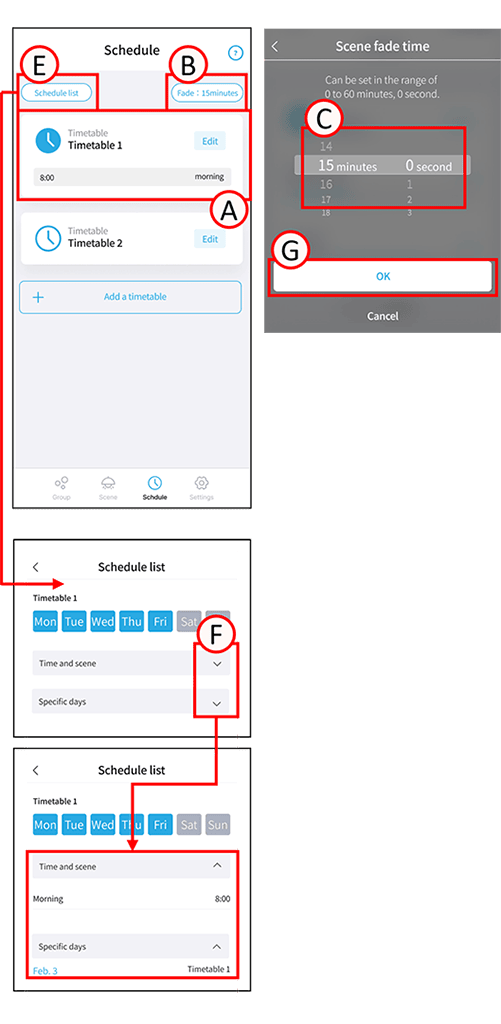
The icon for the currently running timetable changes color, and the currently playing scene is displayed (A).
Setting up a scheduled fade
1
Tap B.
The Schedule Fade settings screen will open.
2
Scroll through C and set the minutes and seconds as desired.
3
Tap D.
The scheduled fade setting is now complete.
Checking the schedule list
1
Tap E.
The schedule list screen will open. A list of the timetables you have created will be displayed.
2
Tap F.
The set time, scene, and information for the specific date will be displayed.