
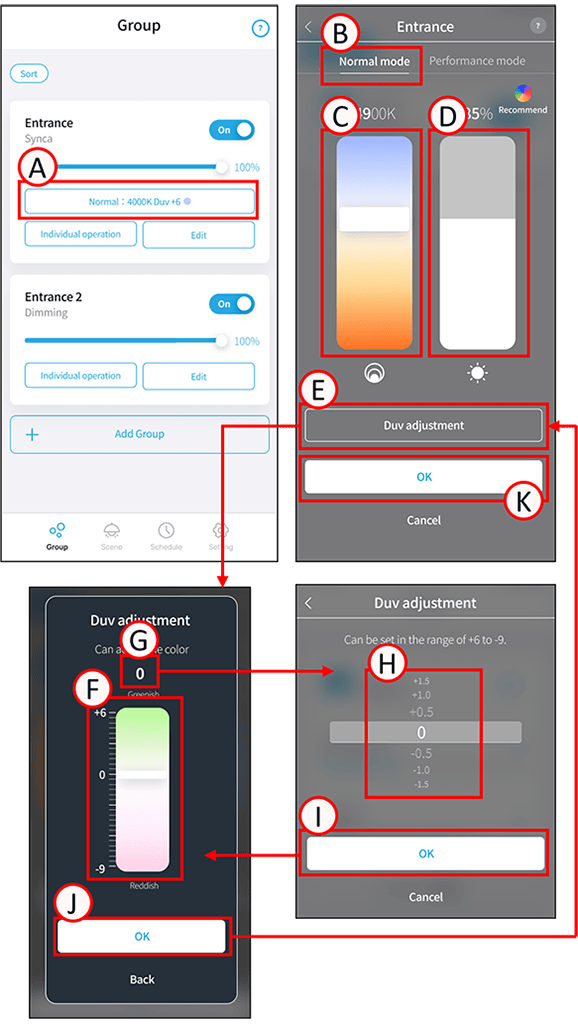
Tone the group – Normal mode
1
Tap A of the group you want to adjust the color of. The color adjustment screen will open.
2
Tap B. This will switch to normal mode.
Normal mode
Tunable : 2700-6500K
Synca : 1800-12000K
Adjust between Duv “6” and “-9”.
3
Slide or tap C and D to change the brightness and color temperature as desired.
To adjust the Duv, start from step 4.
If you do not want to adjust the Duv, proceed from step 7.
4
Tap E.
The Duv adjustment screen will open.
5
Slide or tap F to change it to any Duv. Alternatively, tap G. The reels screen will open.
Slide H to any Duv, then tap I. This will take you back to the previous screen.
Changing the direction to “+” will increase the green tint, while changing it to “-” will increase the red tint.
6
Tap J.
The color adjustment screen will open.
7
Tap K.
Color adjustment settings are complete.
Duv
This value represents Δuv (the distance from the blackbody locus) multiplied by 1000. Values closer to the locus indicate a more natural light color.
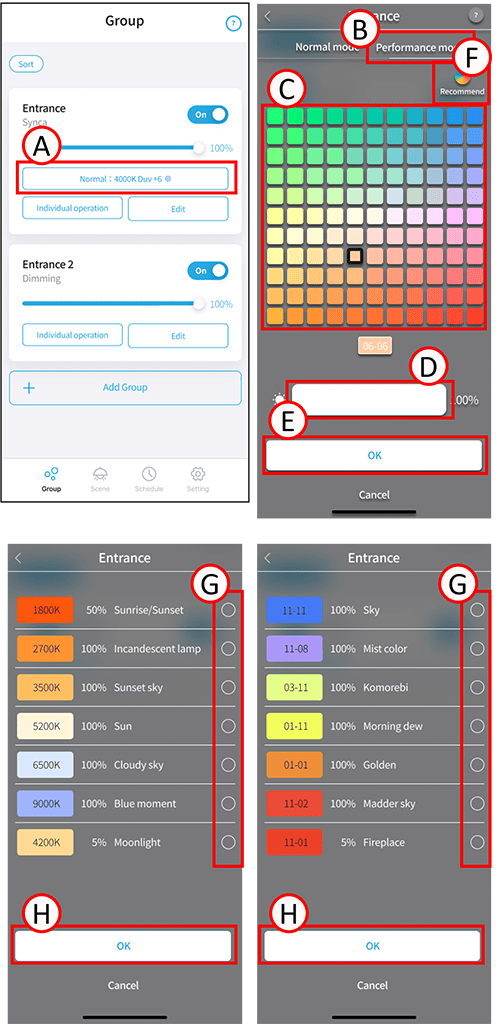
Tone the group – Performance Mode
1
Tap A of the group you want to adjust the color of.
The color adjustment screen will open.
*This applies only to the Synca color matching group.
2
Tap B. This will switch to Performance mode.
Performance mode
Synca : 121 colors
3
Tap C to change it to your desired color.
Slide or tap D to change the brightness to your desired level.
4
Tap E.
Color adjustment settings are complete.
Recommended settings for toning the group
1
Tap A of the group you want to adjust the color of.
The color adjustment screen will open.
2
Tap B.
Switch to any Normal/Performance mode.
3
Tap F.
There are recommendations for both Normal and Performance modes, so tap the circled area of your choice G.
4
Tap H.
The color adjustment screen will open.
5
Tap E.
Color adjustment settings are complete.