
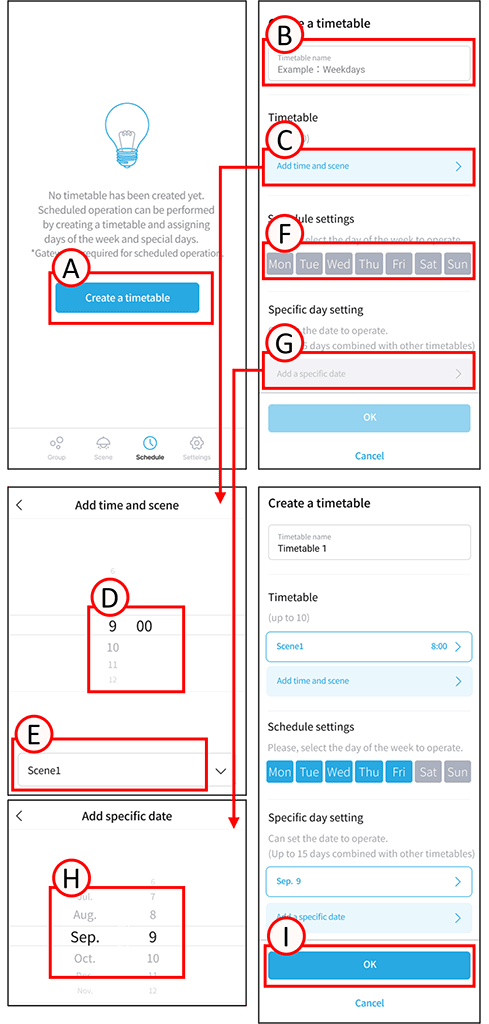
You need to set up the scene before creating a schedule.
1
Tap A.
The timetable creation screen will open.
2
Tap B.
Enter any timetable name.
3
Tap C. The time and scene addition screen will open.
Scroll D. Set your desired time.
Tap E. Set your desired scene.
*The timetable sets the scene transitions for a day from 0:00 to 23:59.
*You can set up to 10 scene transitions.
4
Tap F.
Select the days of the week on which you want to run the timetable.
*Note: Days of the week cannot overlap with other timetables.
5
Tap G. The Add Specific Dates screen will open.
Scroll H. Add the specific dates on which you want the timetable to run.
* You can set up to 15 specific dates.
* Specific dates cannot overlap with other timetables.
6
Tap “I”.
The timetable creation is complete.
A gateway is required for scheduled operation.
A gateway is required for scheduled operation because it is used to synchronize the time.
Groups containing sensors cannot be scheduled for operation.
Groups that include an illuminance sensor or motion sensor cannot use the scene, and therefore cannot be scheduled to use the scene.