
1
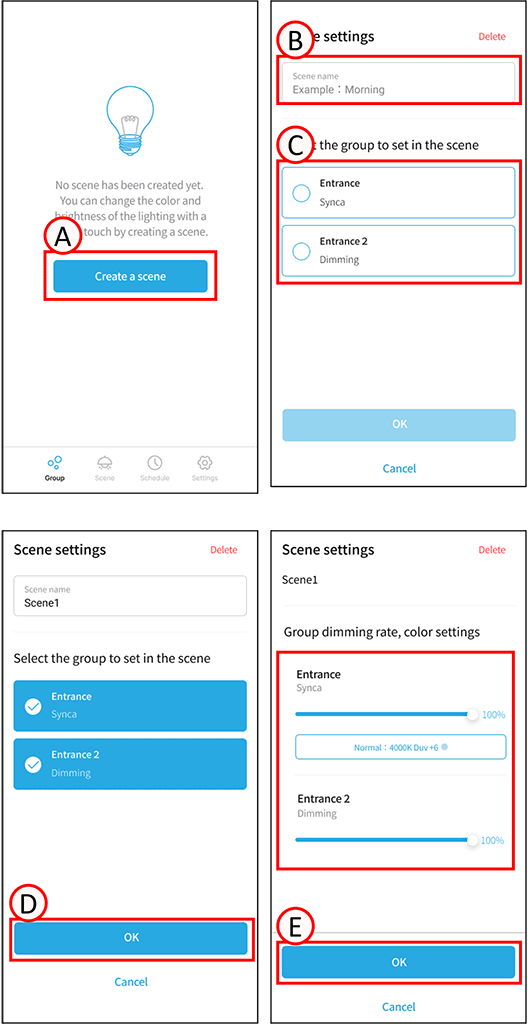
Tap A.
The scene settings screen will open.
2
Tap B.
Enter any scene name.
3
Tap the C in the group you want to set for the scene to check the box.
4
Tap D.
The group’s dimming rate and color temperature settings screen will open.
5
Adjust the brightness and color temperature settings for each group.
6
Tap E.
Scene creation is complete.
Groups containing sensors cannot use scenes.
Groups containing illuminance sensors or motion sensors cannot be used as scenes. If a sensor group was included when registering a scene, please manually remove it from the scene.
If you have registered one light fixture to multiple groups
You cannot register overlapping groups to a single scene.
If you change a group within a scene after the scene has been created
If you change the group or add lighting fixtures to the group after creating the scene, please press the “Overwrite Scene Settings” button. For more details, please refer to the operation instructions on the scene screen.