
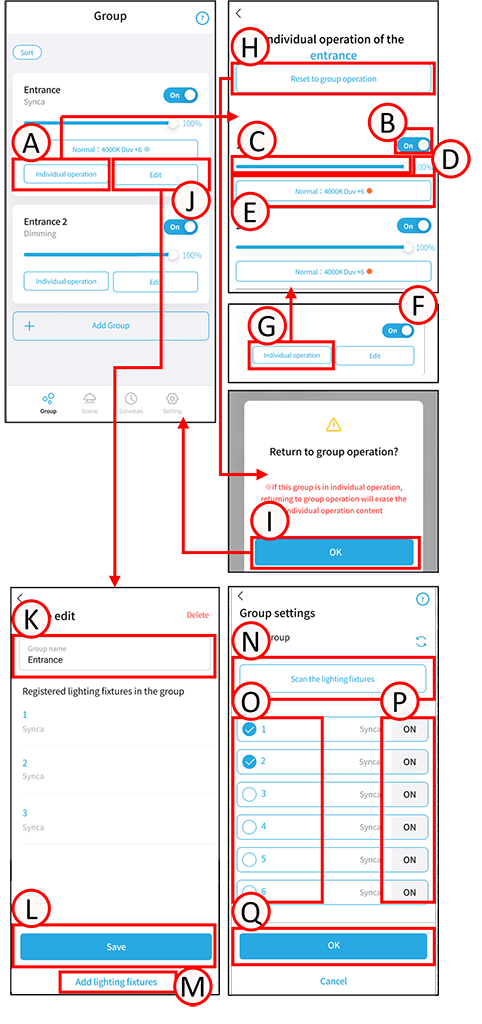
Individually control the lighting fixtures in the group.
1
Tap A for the group you want to control individually. The individual control screen will open.
Turn the light fixture ON/OFF
1
Tap B. You can switch the light fixture on and off.
Adjust the brightness and color temperature of the lighting fixtures.
1
Slide C to change the dimming level to your desired setting. Alternatively, tap D. A numerical input screen will open.
Instructions for using the group screen
2
Tap E. The color adjustment screen will open.
Instructions for using the group color adjustment screen.
Switching from individual operations to group operations
Group control is restricted during individual operation. (F)
1
Tap G. The individual operation screen will open.
2
Tap H. A confirmation screen will open. Tap I.
This will switch to group operation.
Group Editing
Tap J. The group editing screen will open.
Edit Group Name
1
Tap K. Enter any group name.
2
Tap L. The group name editing is complete.
Add and remove lighting fixtures from a group.
1
Tap M. The group settings screen will open.
2
To add or remove a light fixture from a group, tap the light fixture (O) to toggle the checkmark. Tap (P) to turn the target light fixture ON or OFF.
3
Tap Q.
Light fixtures will be added to or removed from the group, and the group editing is complete.
Adding new lighting fixtures
1
Tap N. The scan selection screen will open. Scan the light fixture.