
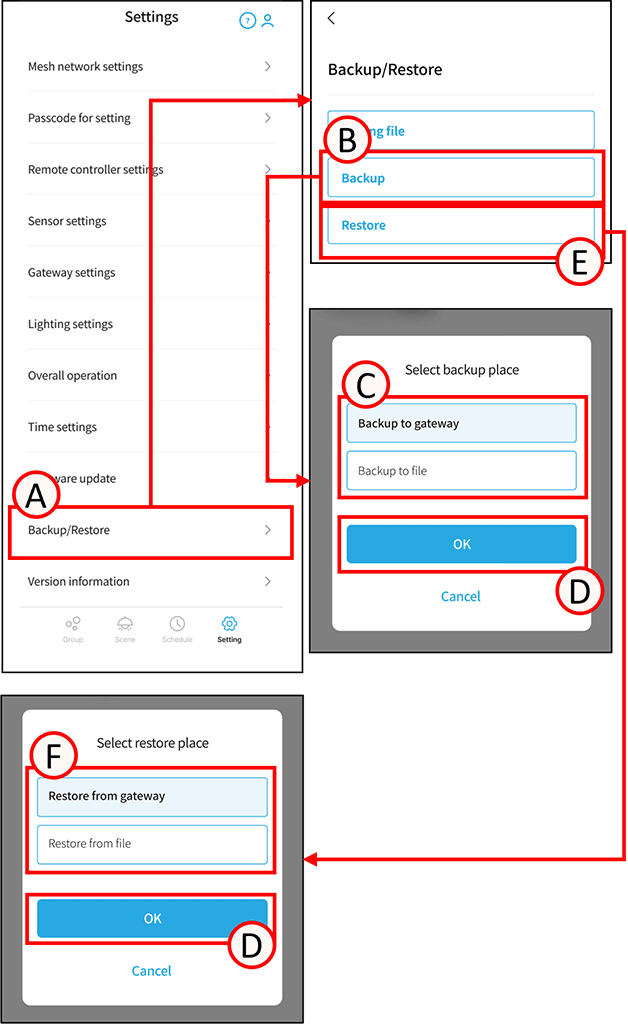
To back up or restore data to the gateway, you must first connect your operating device and the gateway via Wi-Fi and restart the app.
*Please check the gateway’s Wi-Fi SSID and other details in the gateway settings screen’s operation instructions.
Back up your configuration data
1
Tap A.
The backup/restore settings screen will open.
2
Tap B.
The backup selection screen will open.
3
Select your desired backup destination in C.
4
Tap D.
Backup complete.
When backing up to a file, you can share the backup file.
* Backup file storage location
iOS: “Files” → “On My iPhone (iPad)” → “smartLEDZFit”
Android (AOS 10 and earlier): “File Manager (Files)” → “Internal Storage/SmartLEDZ/backup”
Android (AOS 11 and later): “File Manager (Files)” → “Internal Storage/Document/SmartLEDZ/backup”
*Backup file name
Initially, it is as shown in the following example, but you can change the part other than “.json” to any string later. Edit and share configuration data
e.g. FitSample_250825181505.json
FitSample is the mesh ID, and 250825181505 indicates the backup date and time (in this case, August 25, 2025, 18:15:05).
Restore configuration data
1
Tap E.
The restore selection screen will open.
2
Select the desired restore source using F.
*When restoring from a file, you can select data stored in the backup file’s location. Please save any necessary data beforehand.
Backup and restore procedure to gateway
1
Close the app. Connect to the gateway’s Wi-Fi network from your device’s “Settings”.
2
Restart the app and confirm that the gateway indicator is blinking (indicating that you are connected to the gateway’s Wi-Fi).
3
Performs backup and restore operations.
4
Close the app and disconnect the Wi-Fi connection with the gateway.
*Other operations cannot be performed while connected to Wi-Fi.