
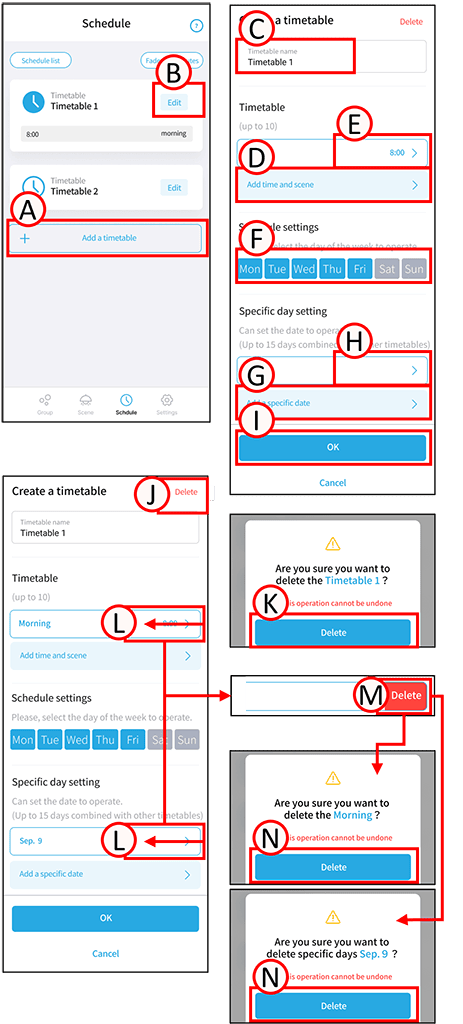
Add or edit the timetable.
1
To add an item, tap A.
To edit an item, tap B in the corresponding timetable.
The timetable creation screen will open.
2
Tap C.
Enter any timetable name.
3
Tap D. The time and scene addition screen will open.
Tap E. You can edit the time and scenes.
Set the scenes and the playback time for each scene as desired.
*The timetable sets the scene transitions for a day from 0:00 to 23:59.
*You can set up to 10 scene transitions.
4
Tap F.
Select the days of the week on which the timetable will run.
Tap again to switch to days on which it will not run.
*Days of the week cannot be set in overlapping timetables.
5
Tap G. The Add Specific day setting screen will open.
Tap H. You can edit the specific date.
Set the specific date on which the timetable will run.
* You can set up to 15 specific dates.
* Specific dates cannot overlap with other timetables.
6
Tap “I”.
Timetable creation and editing are complete.
Delete the timetable
1
Tap B.
The timetable creation screen will open.
2
Tap J. A confirmation screen will open. Tap K.
Tap OK. The timetable has been deleted.
Delete time, scene, and specific day.
1
Slide left to select the relevant time, scene, and specific day. (L)
2
Tap M. A confirmation screen will open. Tap N.
3
Tap “I”.
Deletion of time, scene, and specific date is complete.