
1
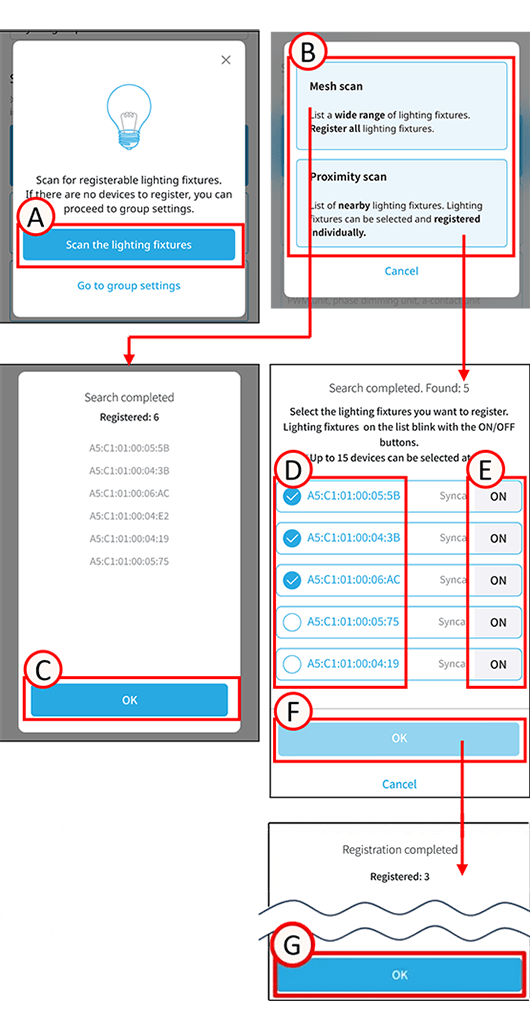
Tap A.
The scan selection screen will open.
2
Select the scan type.
Please check 3 for mesh scan and 5 for proximity scan.
3
Tap B.
Mesh scanning registers all surrounding devices.
4
Tap C.
The group settings screen will open.
5
Tap B.
Proximity scanning lists nearby light fixtures and registers them individually.
6
Tap D next to the light fixture you want to include to check the box. Tap E to turn the selected light fixture ON or OFF.
7
Tap F.
The selected devices will be registered.
8
Tap G.
The group settings screen will open.
About scanning
The scan will be performed in an area centered on your current location. To search for all light fixtures, move to a different location before starting the scan.
(Not only lighting fixtures, but also gateways and sensors will be listed.)
*Please do not move, cancel the search, stop the app, restart, or turn off the device while the device is being searched for. Registration will not be completed successfully.
* Scanned gateways, remotes, and sensors can be viewed and configured from their respective settings screens.