
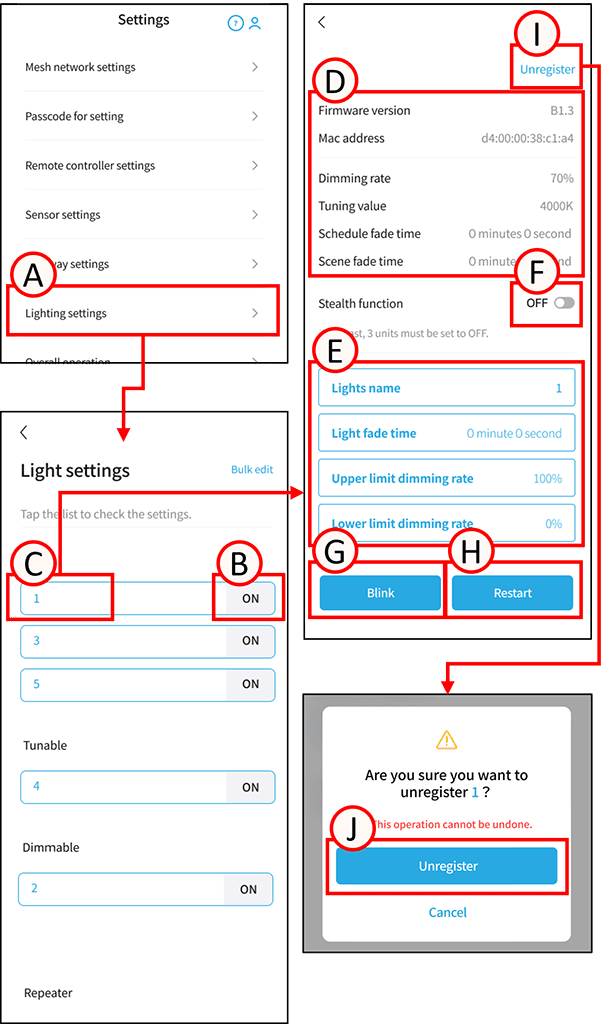
Checking the lighting settings
1
Tap A.
The device list screen will open. Devices are sorted by type.
Tapping B will turn the device OFF or ON.
2
Tap any C.
The settings screen will open.
Settings Information (D)
[Firmware Version]
The firmware version can be checked.
[MAC Address]
The MAC address can be checked.
[Dimming Rate]
The current dimming rate can be checked.
[Color Tone Value]
The color tone value for Tunable and Synca color tone types can be checked.
[Scheduled Fade Time]
The fade time for scheduled control can be checked.
[Scene Fade Time]
The fade time for scene control can be checked.
Lighting settings change
Tap E. You can change various settings.
[Lighting Name]
You can change the name of the lighting fixture.
[Lighting Fade Time]
You can check and edit the fade time for individual lighting fixture.
Applies to overall, group, and individual operations.
[Maximum Dimming Rate]
You can set the maximum dimming rate for individual lighting fixture.
(50~100%) *Setting below the minimum dimming rate is not possible.
[Minimum Dimming Rate]
You can set the maximum dimming rate for individual lighting fixture. (0~99%)
[Stealth Function]
Tap F.
Turning it ON allows you to set measures against radio interference.
[Flashing]
Tap G. You can make the device flash.
[Restart]
Tap H. You can restart the device.
Deregistering the lighting
*All settings made to the target device using this system will be reset, and the connection to the mesh network will be disconnected.
1
Tap I.
A confirmation screen will open. Tap J.
The deregistering is complete.