
Scan gateway
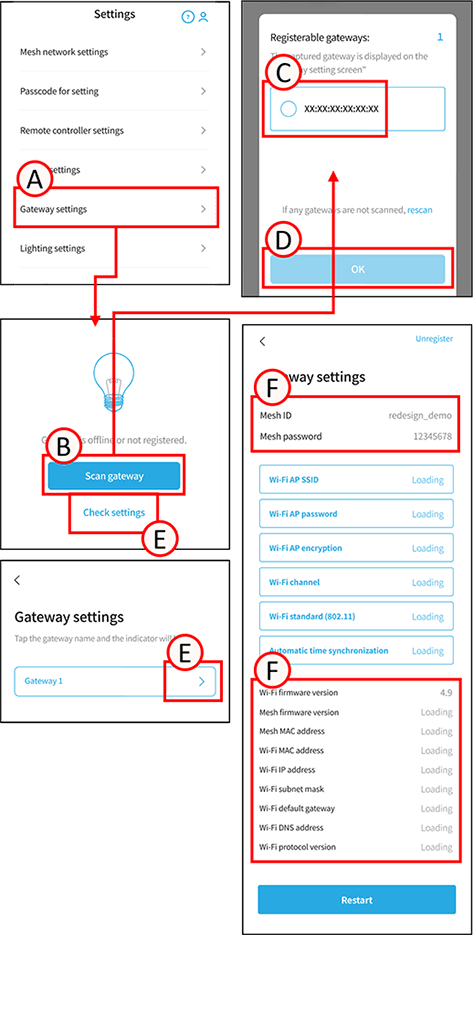
When scanning gateways, only gateways will be listed. Scanned gateways can be viewed from the gateway settings screen.
1
Tap A.
The gateway settings screen will open.
2
Tap B. The scan will begin.
3
Tap C next to the gateway you want to import data from, and check the box. The indicator for the tapped gateway will blink.
4
Tap D.
Gateway registration will begin.
Check the gateway configuration status.
1
Tap E.
The settings screen will open.
Configuration Information (F)
[Mesh ID]
You can check the Mesh ID.
[Mesh Password]
You can check the Mesh Password.
[Wi-Fi Firmware Version]
You can check the firmware version of the Wi-Fi module.
[Mesh Firmware Version]
You can check the firmware version of the Mesh Network Module.
[Mesh MAC Address]
You can check the MAC address of the Mesh Network Module.
[Wi-Fi Communication Settings]
You can check the communication settings of the Wi-Fi module.
[Wi-Fi Protocol Version]
You can check the communication protocol version of the Wi-Fi module.
This is only displayed when connected to a gateway.
If not connected to the gateway, only the mesh ID and mesh password will be displayed.
Gateway settings change
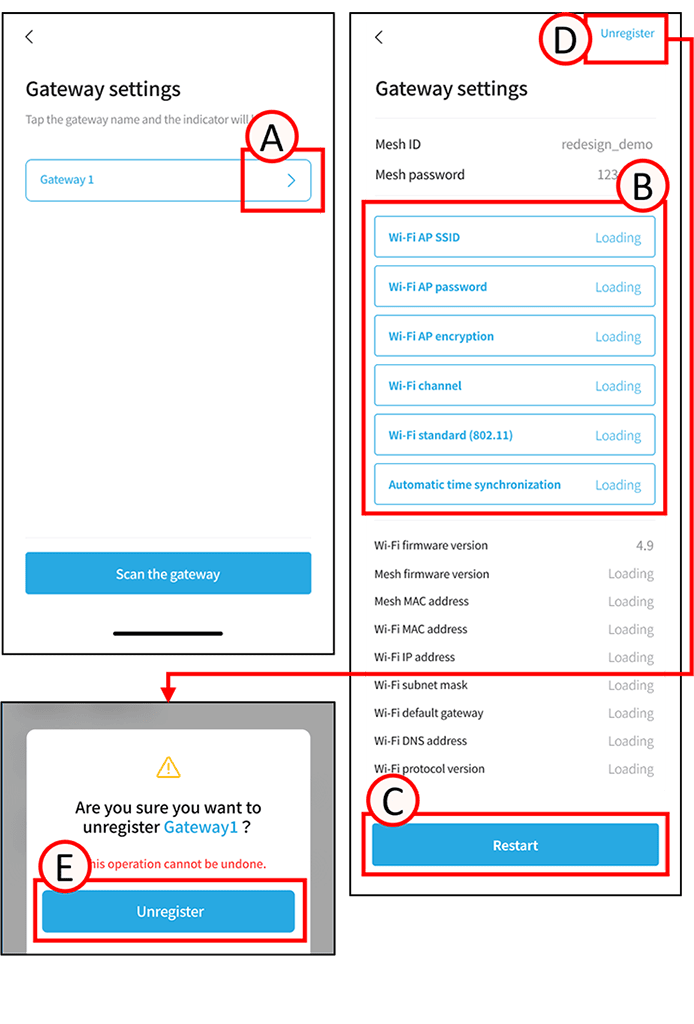
Tap A. The settings screen will open.
Tap B. You can change various settings.
[Wi-Fi AP SSID]
Displays the SSID of the Wi-Fi access point.
You can set it to 8 to 31 alphanumeric characters and symbols.
[Wi-Fi AP Password]
Displays the password of the Wi-Fi access point.
You can set it to 8 to 31 alphanumeric characters and symbols.
[Wi-Fi Encryption]
You can set Wi-Fi encryption.
[Wi-Fi Channel]
Displays the channel used for Wi-Fi communication.
You can set channels 1 to 13.
The default value is channel 11.
[Wi-Fi Standard (802.11)]
Displays and sets the Wi-Fi communication standard.
Please refer to the gateway’s instruction manual for details.
[Automatic Time Synchronization]
This setting periodically sends the time from the gateway to the mesh network.
The default value is ON.
[Restart]
Tap C. You can restart the device.
Deregister the gateway
*All settings made to the target device using this system will be reset, and the connection to the mesh network will be disconnected.
1
Tap D. A confirmation screen will open.
Tap E. The deregisteration is complete.