
Rename of configuration data
1
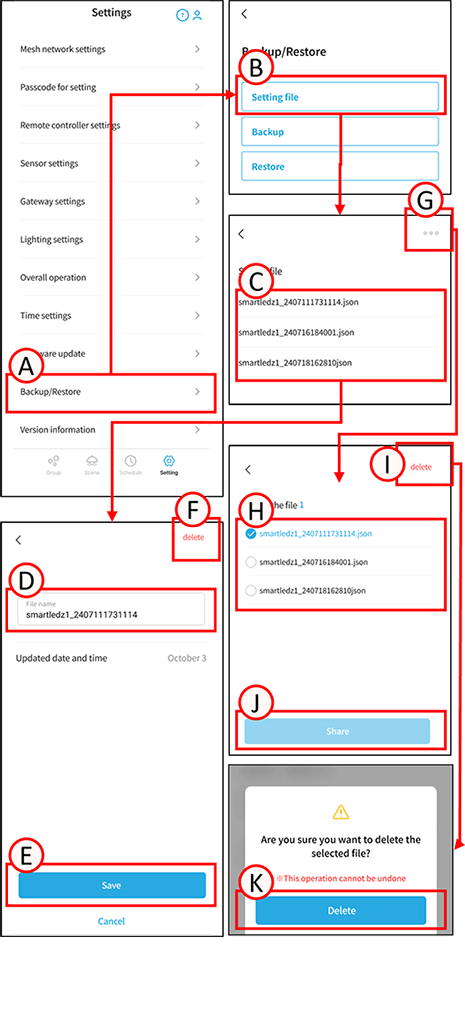
Tap A.
The backup/restore settings screen will open.
2
Tap B.
The screen listing backup files for settings data will open.
3
Select any configuration data on C.
*The configuration data is displayed with its default name or a previously changed name. For information on the default name, please refer to Configuration Data Backup and Restore.
4
Tap D.
Set a any name.
5
Tap E.
The name change is complete.
Delete configuration data
1
Tap A.
The backup/restore settings screen will open.
2
Tap B. The settings file list screen will open.
How to delete individual settings data
3
Tap any C.
4
Tap F.
A confirmation screen will open. Tap K. The settings data will be deleted.
How to delete bulk configuration data
3
Tap G.
You will now be able to select multiple settings from the list.
4
Select the data you want to delete from H.
5
Tap I.
A confirmation screen will appear; tap K. The settings data will be deleted.
Share configuration data
1
Tap A.
The backup/restore settings screen will open.
2
Tap B.
The settings file list screen will open.
3
Tap G.
You will now be able to select multiple settings from the list.
4
Select the data you want to share from H.
5
Tap J.
The sharing function of your device will appear, allowing you to share using your preferred method.