
1
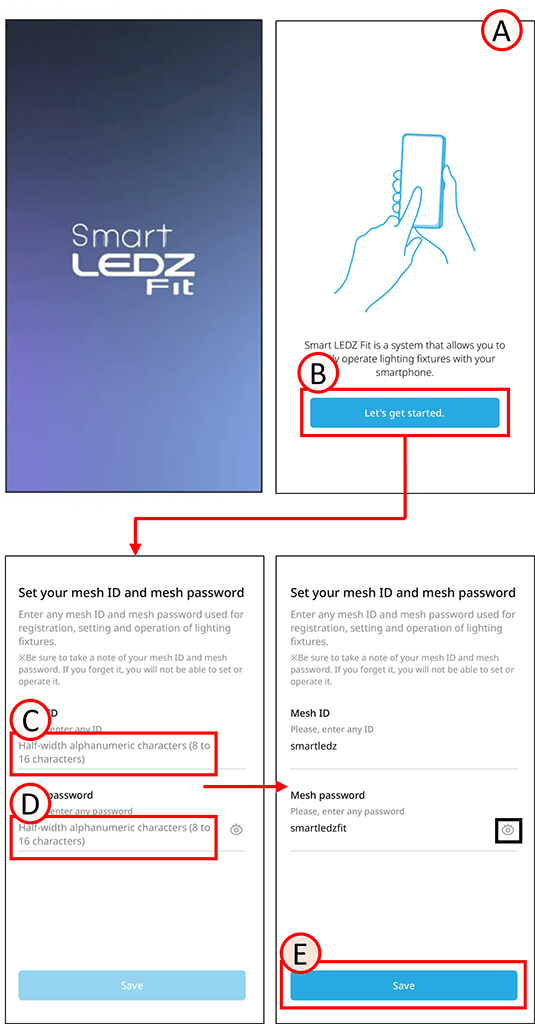
Launch the Fit app and the screen will automatically switch to screen A.
2
Tap B.
The screen for setting the Mesh ID and Mesh Password will open.
3
Tap C and set your desired Mesh ID.
The Mesh ID can be 8 to 16 alphanumeric characters and symbols.
*The symbols that can be used are: !#$%&’()+,-;=@[]^_{}~
4
Tap D and set your desired mesh password. The mesh password can be 8 to 16 alphanumeric characters and symbols.
*The symbols that can be used are: !#$%&’()+,-;=@[]^_{}~
 Tapping the icon will display the settings.
(You cannot set up the mesh network without setting both the mesh ID and password.)
5
Tap E.
The Mesh ID and Mesh Password will be set.
About Mesh ID and Mesh Password
If you lose the Mesh ID and mesh password, there will be no way to initialize the luminaires. To regain control, the wireless module must be replaced.
Please be sure to keep them securely stored, such as by writing them down on paper.